What the IPTV EPG is and why it matters
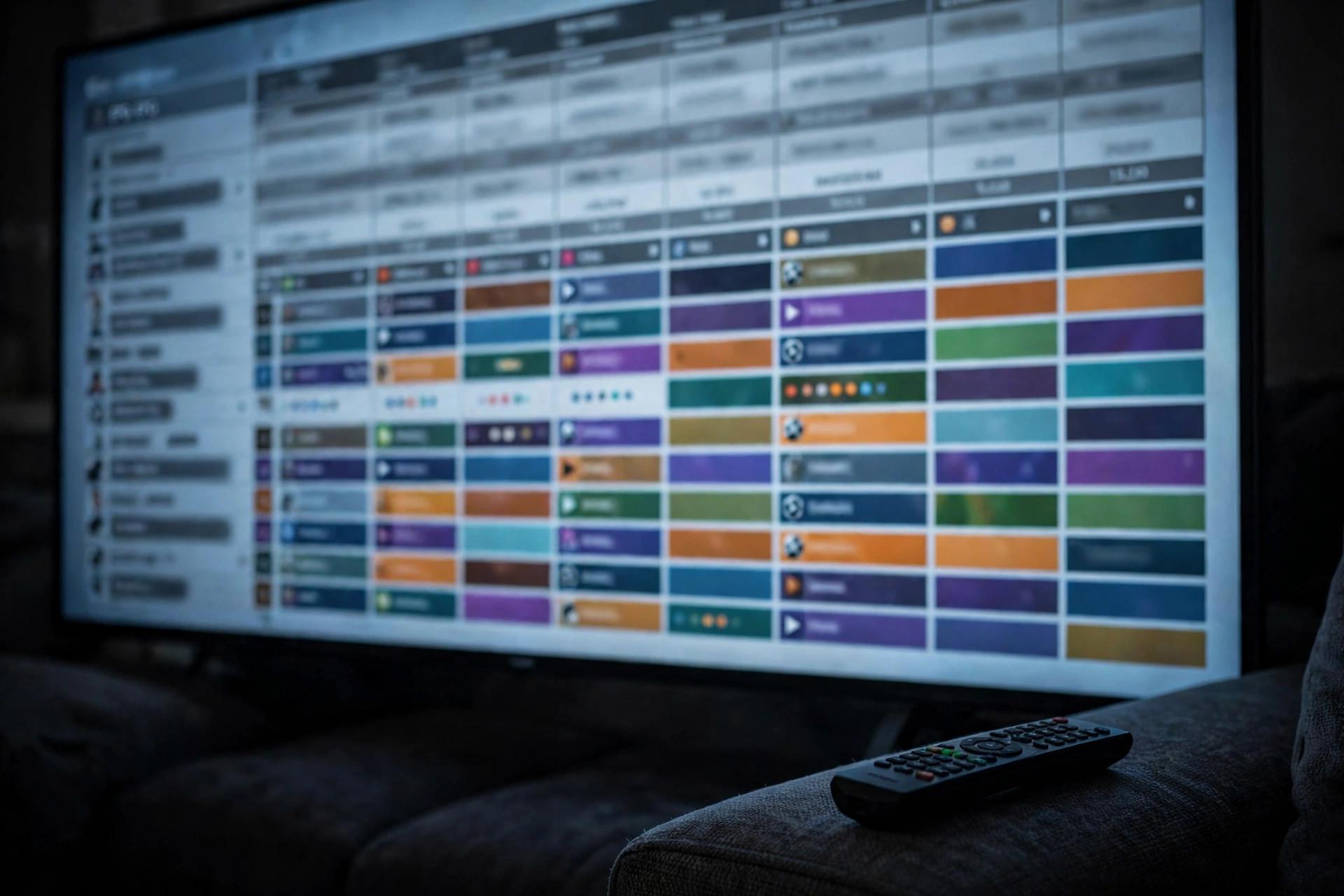
The EPG — electronic programme guide — is the grid that tells you what is on now, what is next, and what airs tonight, and it is what turns a channel list into a television. Without it, 57,000 channels are a phone book; with it, the same list is a TV you can browse. The guide data comes from the provider server, not from the player app: the app asks the server for the schedule, the server answers with programme names, times and descriptions, and the app draws the grid. That is why the guide loads with the playlist on an Xtream Codes login, and why a playlist that loads channels but no guide usually has a login problem rather than an app problem.
A good EPG covers the current programme and the next one on every channel, a full evening on most networks, and a full week on the major US channels — ABC, NBC, CBS, FOX, ESPN, HBO and the rest. Smaller channels carry a day or two, and some carry none at all, because the guide data comes from the channel source and not every source publishes a schedule. The guide also powers catch-up and recording: the app reads the start time from the guide, so a recording scheduled from the grid starts at the right minute. The TiviMate setup guide shows the guide on the most popular player, and the Smarters Pro setup guide shows it on the other big app.
IPTV EPG setup USA: how the guide loads
On an Xtream Codes login, the EPG needs no setup at all: the app downloads the guide with the playlist on first login, and the grid fills in over the first one to three minutes. In TiviMate, open Settings, then EPG, and confirm the update is set to run on app start with an interval of 12 hours — that keeps the guide fresh without hammering the connection every hour. In Smarters Pro, the same setting sits under Settings, then EPG Settings. In IBO Player, the guide loads with the playlist and there is no manual update button; restarting the app pulls fresh data. The guide fills in progressively, so a few blank rows during the first minute are normal, and the grid is complete once the progress indicator disappears.
- Log in with Xtream Codes so the guide arrives with the playlist.
- Set the EPG update to run on app start, every 12 hours.
- Wait for the first sync to finish before judging the guide.
- Set the device clock to automatic with the correct US time zone.
- Run a manual EPG update from the player settings if rows stay blank.
- Clear EPG data from the settings if the guide shows gaps after a bad update.
On an M3U login, the guide needs a separate source: the playlist link carries the channels, and the EPG address is a second link that the app must be told about. In TiviMate, open Settings, then EPG, then EPG Sources, and add the guide URL support sends you. In Smarters Pro, the same field sits under Settings, then EPG Settings. If the guide stays blank on an M3U login, the usual cause is a missing guide source — ask support for the Xtream Codes login instead, because it carries the guide with the playlist and removes the second link entirely. The Firestick setup guide covers the login choice on the stick, and the Android TV setup guide covers it on Google TV.
Fix the EPG time zone: the most common guide problem
A guide that shows programmes two or three hours off has one cause: the device clock. Every player reads the system clock and shifts the whole grid when it is wrong, so a Firestick set to Pacific time in a New York home shows the evening news at 5 PM instead of 8 PM. The fix is the same on every device: set the clock to automatic and pick the correct US zone — Eastern, Central, Mountain or Pacific. On Firestick, that is Settings, then Preferences, then Time Zone. On Android TV, Settings, then System, then Date and Time, then Automatic date and time. On Apple TV, Settings, then General, then Date and Time, then Set Automatically. On Samsung and LG TVs, the clock sits under Settings, then General, then System Manager or Date and Time.
After fixing the clock, run a manual EPG update in the player settings and wait a minute — the guide rebuilds from the corrected time, and the grid lines up. A guide that is right on some channels and wrong on others is a different problem: those channels publish their schedule in a different time zone at the source, and no device setting will fix them. A guide that shows the right times but the wrong programmes usually means the EPG data is stale — clear the EPG data from the player settings and let it rebuild on the next launch. That deletes no playlist and no favorites, and it fixes most one-off guide corruption in under two minutes.
Catch-up TV: watch what already aired
Catch-up TV rides on the EPG: channels with a small clock icon in the guide let you scroll back and watch programmes that already aired, usually for 24 to 48 hours. That is the easiest way to catch a game you missed without recording anything — open the guide, scroll left to the programme, press OK, and it plays from the start. The catch-up window depends on the channel: major US networks usually keep 48 hours, sports channels keep 24, and some channels keep none at all. The window also depends on the player: TiviMate Premium and Smarters Pro both show the clock icon, while IBO Player shows catch-up channels in a separate group in some playlist layouts.
| Player | Guide update | Catch-up | Manual EPG clear |
|---|---|---|---|
| TiviMate | Settings, EPG | Clock icon, 24–48 h | Settings, EPG, Clear EPG data |
| Smarters Pro | Settings, EPG Settings | Clock icon, 24–48 h | Settings, EPG Settings |
| IBO Player | Automatic with playlist | Separate group | Restart the app |
| Samsung / LG app | Automatic with playlist | Clock icon | Restart the app |
Catch-up is not recording: it plays the programme from the provider server, so it needs the same connection as live TV, and it stops working when the window expires. If a programme shows in the guide but will not play back, the window has closed or the channel never offered catch-up — the clock icon is the test, and no icon means no catch-up. Scheduled recording is the alternative for programmes you know you will miss: pick the programme in the guide, choose Record, and the app saves it locally. The recording guide covers storage sizes, USB drives and scheduled recordings on every device.
Favorites, reminders and the guide on a big playlist
With 57,000 channels, the guide is only usable if the channel list is short — and favorites are how you shorten it. In TiviMate, highlight a channel, hold OK and choose Add to Favorites, and Premium adds custom groups, so an NFL group, an NBA group and a news group can live side by side. In Smarters Pro, long-press a channel and choose Add to Favorites, and the favorites row appears at the top of Live TV. In IBO Player, the same long-press adds a channel to favorites. Set the guide to open on the favorites group by default: in TiviMate that is Settings, then TV Guide, then Default Group, and the app opens the guide on the short list every time instead of the full 57,000.
Reminders turn the guide into a planner: pick a programme in the grid, choose Remind Me, and the app alerts you before it starts. TiviMate Premium supports reminders with a notification, and Smarters Pro supports them from the guide as well. That is how you catch a game that starts while you are still at work — the reminder fires, you open the app, and the channel is one tap away. The guide also shows programme descriptions: press OK or Info on any programme to see the synopsis, the cast for a movie, and the start and end time. A guide that shows No information on a channel means that channel publishes no schedule, and no setting will fill it in.
Blank guide, missing channels and other EPG repairs
A guide that is blank everywhere usually means the first sync did not finish — wait three minutes with the app open, because the guide downloads in the background and fills in progressively. A guide that is blank on some channels and full on others means those channels have no guide data from the source, and the fix is to watch a different channel, not to reinstall the app. A guide that shows programmes but will not open them usually means the app cache is corrupt: clear the EPG data from the player settings, or clear the app cache from the device settings — cache never deletes the login or the playlist, so it is safe to try first.
A playlist that loads channels but never loads a guide on any player usually has a login problem: the Xtream Codes password may have changed, or the line may have expired. Retype the three login values from the WhatsApp message, character by character, and check the subscription dates in the same message. If the guide loads on the phone but not on the Firestick, the Firestick clock is the cause — the two devices disagree on the time, and the guide follows the clock. Message support on WhatsApp with the device name and a photo of the blank guide when the repair is not obvious; the team can check the line and the guide source from their side in under a minute.
- Set the EPG update to 12 hours, not every hour, to keep the guide fast.
- Fix the device clock first — it causes most wrong-time guides.
- Use favorites groups so the guide opens on a short list, not 57,000 channels.
- Clear EPG data before reinstalling anything — it never deletes the login.
- Ask support for the Xtream Codes login if an M3U guide stays blank.