IPTV on iPhone setup USA: which apps work
IPTV on iPhone setup USA has two good players, and both are free in the App Store. IPTV Smarters Pro is the first choice: it takes Xtream Codes and M3U logins, it shows the EPG, it supports multi-screen, downloads and parental controls, and it works on iPhone and iPad with the same login. GSE Smart IPTV is the second choice: it is lighter, it handles M3U playlists well, and it suits viewers who only watch live TV and never touch the movie catalogue. Both apps are free to install, and neither sells channels — they play the playlist your provider sends you. Install only the official apps from the App Store, because copycat apps with near-identical names charge for a login that does nothing.
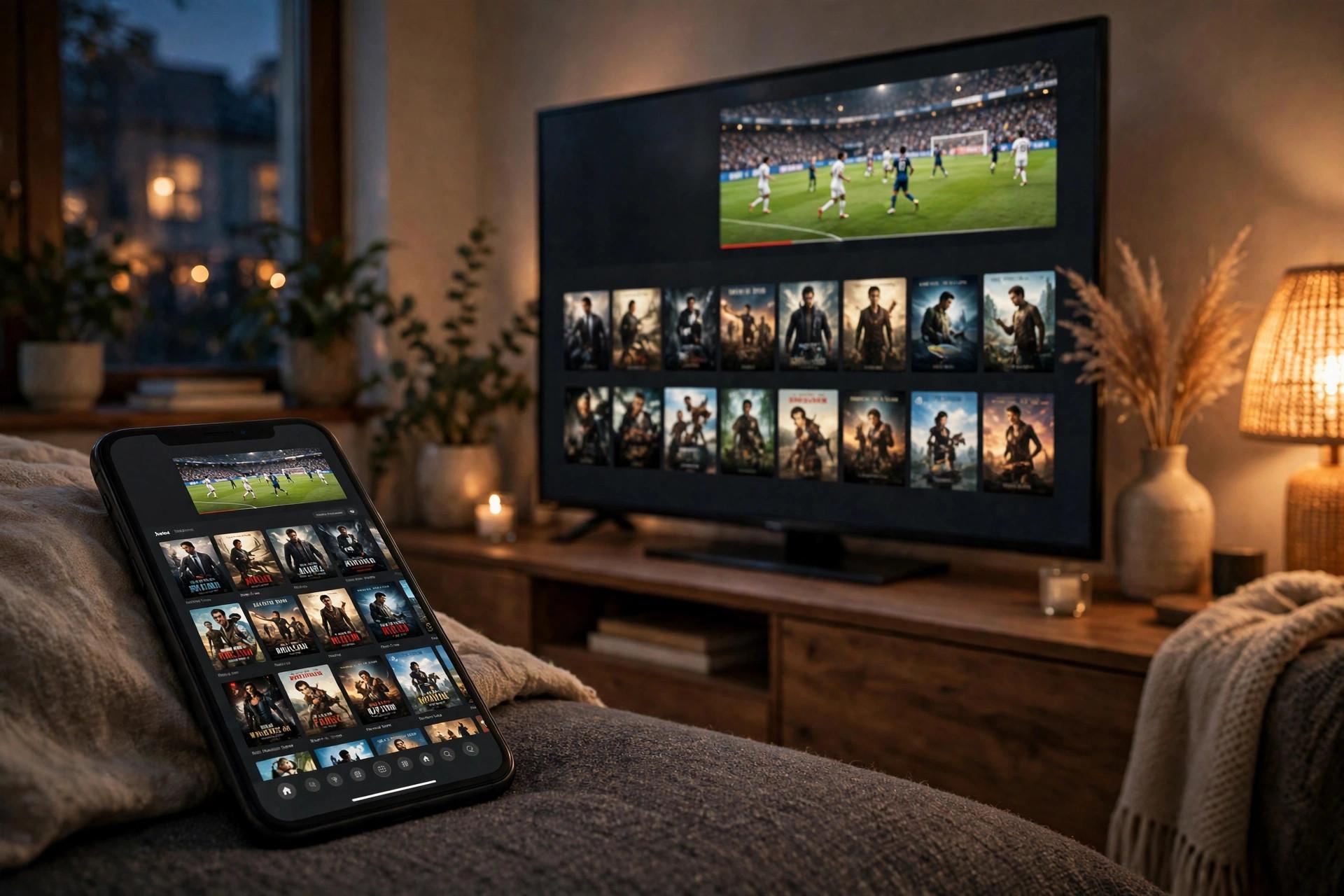
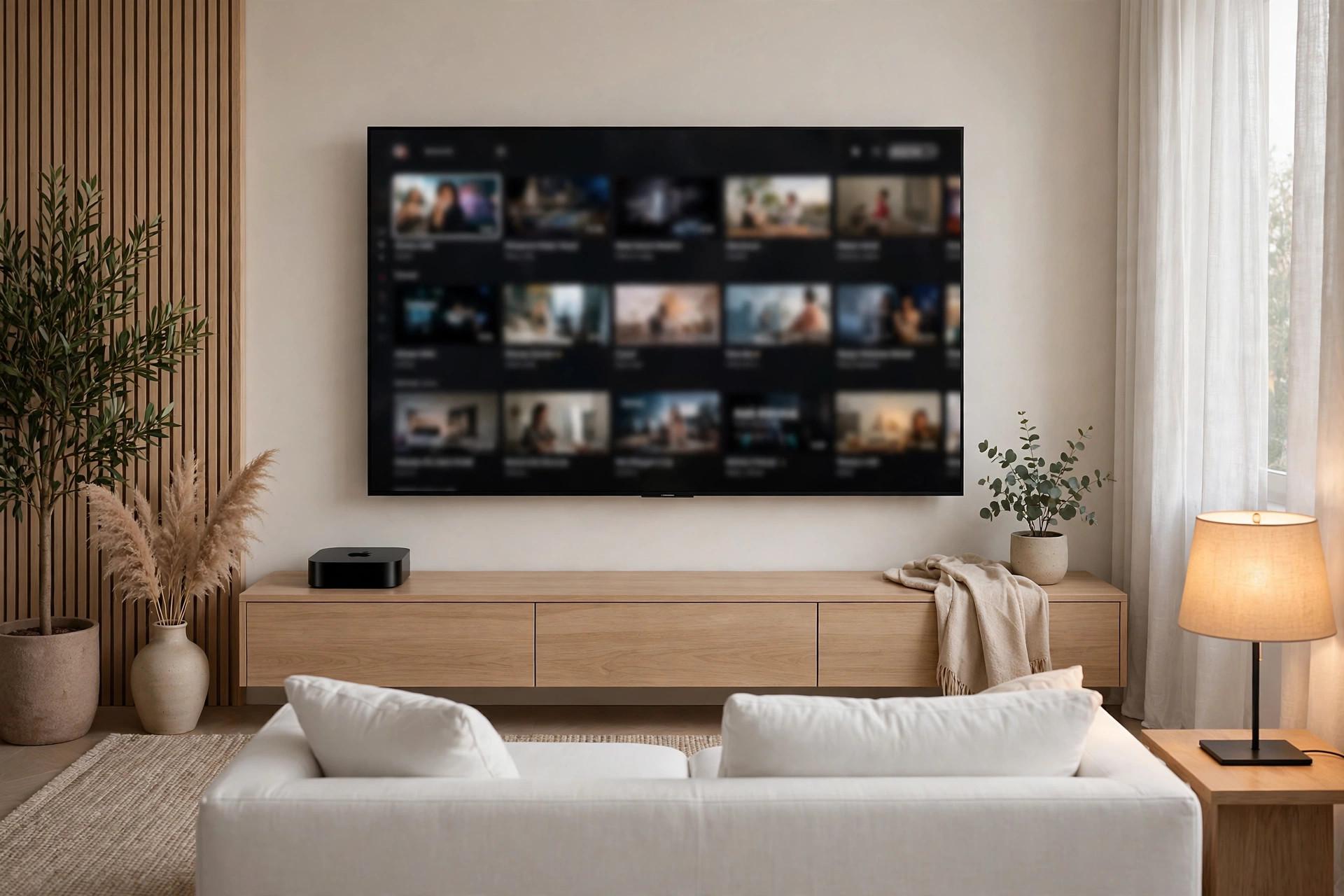
The iPhone is the most personal IPTV screen in the house: it is the TV you carry, the second screen during a game, and the fallback when the living-room TV is busy. A phone on Wi-Fi plays HD smoothly, and on 5G it plays 4K where the signal holds — though 4K on a six-inch screen is wasted data, and the app default of Auto quality is the right call. The iPad is the better tablet for IPTV: the bigger screen shows the guide properly, the split view keeps the channel list open while a stream plays, and the battery lasts a full evening. The Apple TV setup guide covers the same login on the big screen, and the Smarters Pro setup guide walks through the player itself in detail.
Install IPTV Smarters Pro on iPhone and iPad
Open the App Store, search for IPTV Smarters Pro, and install the app — the download takes under a minute on Wi-Fi. Open it and the first screen offers Login with Xtream Codes API or Load Your Playlist or File/URL. Choose Xtream Codes, type a playlist name such as Top IPTV USA, then the username, password and server URL from the WhatsApp message, and tap Add User. Typing on iPhone is easy because you can paste the password straight from WhatsApp — long-press the password field and choose Paste, which beats typing on any TV keyboard. The app contacts the server, and a correct login moves to the home screen within seconds and starts downloading the channel list in the background.
- Install IPTV Smarters Pro from the App Store on iPhone or iPad.
- Choose Login with Xtream Codes API on the first screen.
- Type a playlist name, then the username, password and server URL from WhatsApp.
- Paste the password from WhatsApp instead of typing it by hand.
- Tap Add User and wait one to two minutes for the first sync.
- Open Live TV and check that the channel groups and the guide load.
- Add the app to the home screen dock for one-tap access.
The first sync takes one to two minutes on Wi-Fi and a little longer on mobile data, because the movie and series catalogues are large. Do not close the app during that first sync — interrupting the download leaves half the posters missing until the next refresh. Once the home screen appears, open Live TV and scroll the groups: USA locals, sports, news, movies, kids, Latino and international. If a group is empty, pull down to refresh or close the app fully and reopen it so the sync reruns. The app also asks about notifications on first launch; allow them if you want recording reminders, or decline them if you prefer silence — the choice changes nothing about the streams.
IPTV on iPhone setup USA: the EPG and favorites
The EPG in Smarters Pro lives under the TV Guide tab on the home screen, and it loads automatically with an Xtream Codes login. The guide shows the current programme and the next one for each channel, and tapping a programme opens its description with the start and end time. Set the guide to refresh on app start under Settings, then EPG Settings, and leave the update interval at 12 hours. If the guide shows the wrong times, the iPhone clock is the cause: open Settings, then General, then Date and Time, and set it to automatic — the app reads the system clock, and a phone set to the wrong zone shifts the whole grid. On iPad, the guide shows more hours at once, and the split view keeps the channel list on the left while the guide fills the right side.
Favorites work from any channel list: long-press a channel and choose Add to Favorites, and the favorites row appears at the top of Live TV. Parental controls sit under Settings, then Parental Control, where you set a PIN and lock the adult group and any channel you choose — the lock asks for the PIN every time that group opens. That matters on a phone the kids borrow: a PIN on the adult group takes ten seconds to set and ends the argument before it starts. The search bar at the top of Live TV finds any channel by name, which beats scrolling through 57,000 channels on a small screen. The EPG setup guide covers guide sources, time zones and catch-up in more detail.
AirPlay: send iPhone IPTV to the TV
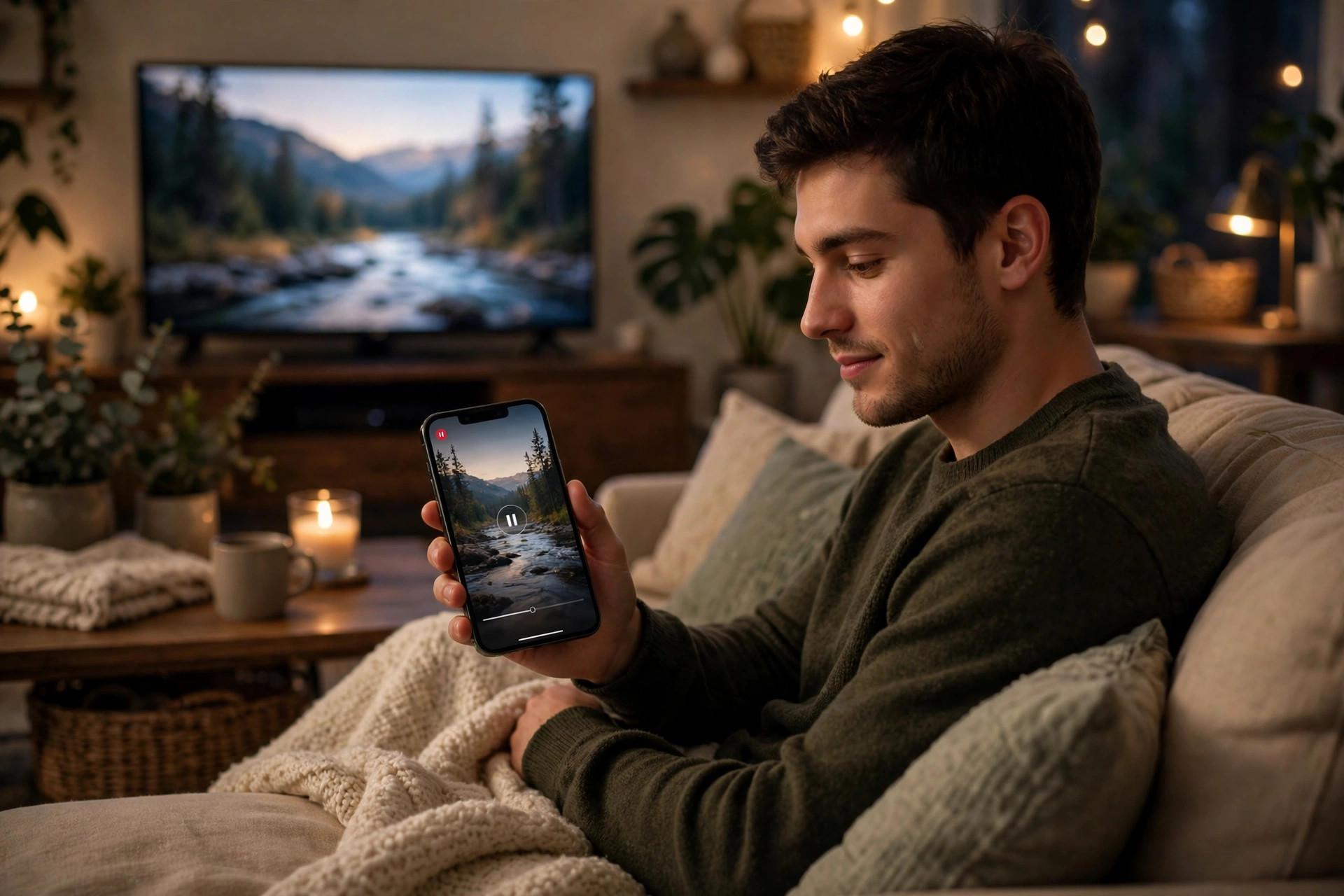
AirPlay is the fastest way to put an iPhone stream on the big screen, and it works with any AirPlay TV — Apple TV 4K, a Samsung or LG TV with AirPlay 2, or a Roku with AirPlay turned on. Start a channel in Smarters Pro, tap the AirPlay icon on the player screen, and pick the TV from the list. The stream moves to the TV in seconds, and the iPhone becomes the remote: change channels, open the guide, pause and resume, all from the phone. The picture follows the phone connection, so a phone on 5 GHz Wi-Fi mirrors at 1080p smoothly, and the audio comes through the TV speakers. Keep the phone plugged in during a long game, because AirPlay plus streaming drains the battery fast.
| Task | Where in the app | Notes |
|---|---|---|
| AirPlay to TV | Player screen, AirPlay icon | Needs AirPlay TV or Apple TV |
| Download a movie | Movies, title, Download | Plays offline on a plane |
| Multi-screen | Player menu, Multi-screen | 2 streams on iPhone, 4 on iPad |
| Parental PIN | Settings, Parental Control | Locks adult group and channels |
| Picture-in-picture | Player screen, PiP button | Watch while using other apps |
Picture-in-picture is the iPhone feature that makes IPTV usable as a second screen: tap the PiP button on the player and the stream shrinks to a floating window while you check messages or browse. The window stays on top of every app, and tapping it returns to full screen. On iPad, the same button opens a floating player that can sit in a corner while the guide stays open behind it. If AirPlay refuses to find the TV, the usual cause is the two devices sitting on different Wi-Fi bands — move both to 5 GHz, or both to 2.4 GHz, and try again. The Roku setup guide covers AirPlay to Roku in detail, and the install page has the steps for every device in the house.
Downloads and offline viewing on iPhone and iPad
Downloads are the one thing the phone app does that no TV box can match. Open Movies or Series, pick a title, tap Download, and the app saves it to the phone for offline viewing — a movie on a plane, an episode on a train, a game replay in a waiting room. A downloaded HD movie takes about 2 GB, and a 4K movie takes about 7 GB, so a 128 GB iPhone holds a weekend of viewing without trouble. Downloads keep the original quality and the original audio track, and they play from the Downloads section on the home screen with no connection at all. Delete finished downloads from the same section to free space; the app never deletes them on its own.
Mobile data is the other half of phone IPTV, and it needs a little care. An hour of HD streaming uses about 2 GB of mobile data, and an hour of 4K uses about 7 GB, so a game on data can eat a monthly allowance in one evening. Open Settings, then Player Settings, and set the default stream quality to HD on mobile data — the app lets you pick separate qualities for Wi-Fi and mobile, and that one setting is the difference between a normal bill and a shock. Turn off the auto-play of previews on mobile data too, because the home screen rows load video previews that count against the allowance. The plans page lists the yearly prices, and the buffering fix guide covers the network side when a stream stutters on data.
iPhone IPTV problems and the fixes that work
The error most people see is Invalid username or password on first login, and nine times out of ten it is a typed password, not a broken account. Passwords are case-sensitive, and the fix is to paste from WhatsApp instead of typing — long-press the field and choose Paste. If the login is right but the playlist loads empty, the line may have expired or the server URL may carry a wrong port; check the dates in the WhatsApp message and retype the URL character by character. A playlist that loads channels but no EPG usually needs the guide source re-added under Settings, then EPG Settings, or the Xtream login instead of M3U.
An app that crashes back to the home screen on launch usually has a corrupt cache: delete the app and reinstall it from the App Store — iOS has no clear-cache button, so reinstall is the cache clear. That wipes the login, so keep the credentials from WhatsApp saved on the phone before doing it. If a single channel shows a black screen while others play, that feed is down — change channel and come back in a few minutes. When the whole app buffers on mobile data, drop the quality to HD in the player settings and test again; a phone that shows two bars of 5G is not the same as a phone on Wi-Fi. Message support on WhatsApp with the exact error text and a screenshot when the fix is not obvious.
- Paste passwords from WhatsApp — never type them on the phone keyboard.
- Set separate stream qualities for Wi-Fi and mobile data.
- Download movies on Wi-Fi before a trip, and delete them after watching.
- Use AirPlay for the big screen and picture-in-picture for a second screen.
- Set a parental PIN on the adult group if the kids borrow the phone.