MAG box IPTV setup USA: which boxes this guide covers
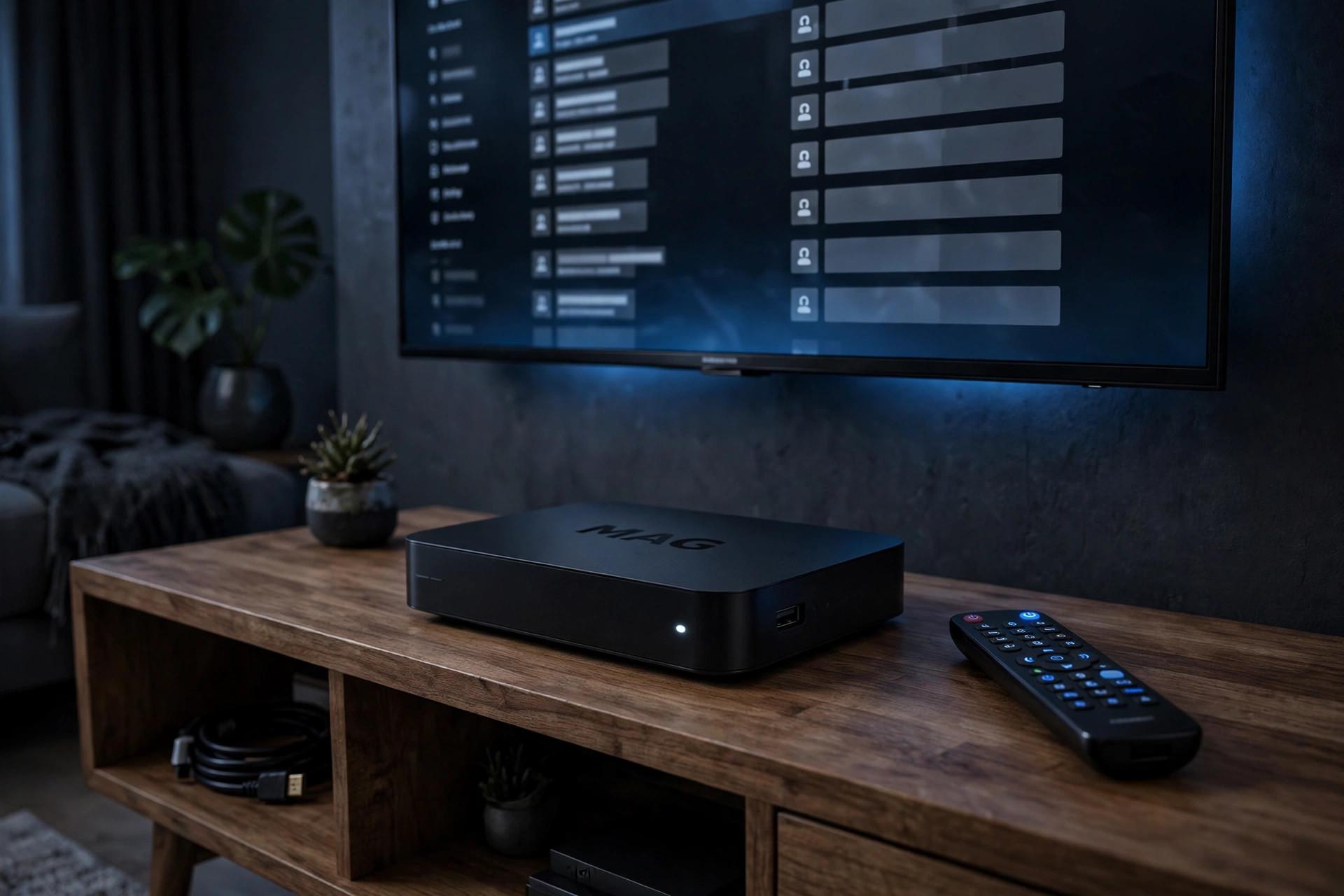
MAG boxes are the dedicated IPTV boxes from Infomir, and the models most homes still run are the MAG 524, the MAG 524w3 with Wi-Fi, the MAG 540 and the MAG 540w3. The 524 is the workhorse: a small black box with an Ethernet port, an HDMI port, a USB port and a remote, running the Linux-based Ministra interface. The 540 adds a faster chip, 4K support and a newer remote, and it is the model to buy if the old 524 feels slow on a big playlist. Setup is identical on both, because the portal system is the same — the only difference is speed and picture quality. A MAG box has no app store in the usual sense, so everything runs through the built-in portal, and that simplicity is exactly why people keep them for years.
Before you start, find the MAC address. It is printed on a sticker on the bottom of the box, and it also shows on screen under Settings, then System Settings, then Device Info, or on the portal loading screen itself. The address looks like 00:1A:79:XX:XX:XX and it is unique to the box — the subscription is tied to it, so the line only works on that one box until support moves it. Write it down and send it to support on WhatsApp before touching the portal settings, because the line must be activated against that MAC first. The Formuler setup guide covers the other big dedicated box, and the Firestick setup guide is the alternative for a household that wants apps instead of a portal.
MAG box IPTV setup: enter the portal URL
Turn the box on and wait for the main menu, then open Settings, then System Settings, then Servers, then Portals. The screen shows Portal 1 and Portal 2, each with a name field and a URL field. Highlight Portal 1, set the name to anything you recognize — Top IPTV USA works — and type the portal URL from the WhatsApp message into the URL field. The URL starts with http:// or https:// and ends with /c/ or /stalker_portal/ depending on the server, so copy it exactly, character by character, with no trailing spaces. The on-screen keyboard is slow, so use the remote arrow keys carefully and double-check the address before saving — one wrong letter gives a blank portal and no error message.
- Send the box MAC address to support on WhatsApp and wait for activation.
- Open Settings, then System Settings, then Servers, then Portals.
- Set Portal 1 name to Top IPTV USA and type the portal URL from WhatsApp.
- Press OK to save, go back, and restart the box from the main menu.
- Wait for the portal to load the channels, guide and VOD — one to three minutes.
- Check that the channel groups and the programme guide appear.
- Leave Portal 2 empty unless support tells you to fill it.
Save with OK, go back to the main menu, and restart the box — either from the menu or by unplugging the power for ten seconds. On boot, the box connects to the portal and loads the interface: channel groups on the left, the channel list in the middle, and the guide on the right. The first load takes one to three minutes while the EPG downloads. If the portal loads but shows no channels, the MAC address is the cause: the line is not activated against that address, or the address was typed with a mistake. Check the MAC on screen against the one you sent, and message support with a photo of the screen. Portal 2 stays empty unless support tells you otherwise — it is a spare slot for a second service, not a backup of the first.
Stalker portal settings on MAG: what each option does
The portal settings hide a few options that matter when something goes wrong. Under Settings, then System Settings, then Servers, then Portals, the portal entry has a Use HTTP version setting — leave it on the default unless support says otherwise, because the wrong version breaks the handshake and the portal loads forever. The Time Zone setting under Settings, then System Settings, then Time, decides the EPG: set it to the correct US zone, or the guide shows programmes hours off. The Video Output setting under Settings, then Video, should be set to the TV native resolution — 1080p on an older set, 2160p on a 4K set — and the Auto frame rate setting, when the box has one, should be on so 24 fps films play smoothly.
The MAG interface itself is plain but fast: the remote arrow keys move through groups, OK opens a channel, and the Guide button shows the grid. Press the Menu button on a channel to see programme details, and use the colored buttons — red, green, yellow, blue — for the shortcuts shown at the bottom of the screen, which change with the menu. The box remembers the last channel, so it resumes where you left off after a restart. If the interface language is wrong, change it under Settings, then System Settings, then Language, before doing anything else — a menu in the wrong language makes every other step harder than it needs to be.
EPG, catch-up and recording on a MAG box
The EPG on a MAG box loads with the portal and shows in the guide grid, with now and next programmes for each channel and a full day view when you scroll right. The guide data comes from the portal server, so there is no separate EPG URL to enter and no manual update button — the box refreshes the guide every time it boots and once a day while it runs. If the guide is blank on some channels, those channels have no guide data from the source. Catch-up works on channels that show a clock icon in the guide: scroll back and press OK to watch a programme that already aired, usually for 24 to 48 hours. That is the easiest way to catch a game you missed without recording anything.
Recording on a MAG box needs a USB drive plugged into the box, formatted as FAT32 or NTFS, and the setting under Settings, then System Settings, then Recording, where you pick the USB drive as the destination. Press the record button on the remote during a live channel to start, and schedule a recording from the guide by highlighting a programme and pressing record. A 64 GB drive holds about thirty hours of HD or nine hours of 4K, and the box splits long recordings into files automatically. If the box refuses to record, the drive is usually the cause — reformat it on a computer first, or try a different stick. The recording setup guide compares recording across Firestick, Formuler and MAG in one place.
MAG 524 vs MAG 540: which box to buy
The MAG 524 is the cheaper box, usually found for $70 to $90, and it handles HD and Full HD without trouble. Its limits show on 4K streams and on very large playlists: the EPG can take a minute to fill, and the interface pauses briefly when you jump between groups with thousands of channels. The MAG 540, usually $110 to $140, has a faster processor, 4K HDR support and more memory, so the same playlist loads faster and the guide scrolls smoothly. For a 1080p TV the 524 is enough; for a 4K TV the 540 is the honest buy. Both boxes have an Ethernet port, and a wired connection is worth using on either — the built-in Wi-Fi on the w3 models works, but it shares the 2.4 GHz band with everything else in the house.
| Model | Max quality | Wi-Fi | Price range | Best for |
|---|---|---|---|---|
| MAG 524 | 1080p / FHD | 524w3 only | $70–$90 | 1080p TVs |
| MAG 524w3 | 1080p / FHD | Built in | $80–$100 | Rooms without Ethernet |
| MAG 540 | 4K HDR | 540w3 only | $110–$140 | 4K TVs |
| MAG 540w3 | 4K HDR | Built in | $120–$150 | 4K TVs without Ethernet |
Buy a MAG box only from a known seller, because the market has clones that look identical and run a modified interface that cannot update. A genuine Infomir box shows the Infomir logo on boot and updates its firmware from the official server under Settings, then System Settings, then Software Update. Run that update before entering the portal, because an old firmware can refuse a new portal URL. The box also has a hidden recovery menu — hold the Menu button while powering on — which restores factory settings if a bad portal entry locks the box. That menu wipes the portal URL, so keep the address from WhatsApp saved on the phone before using it.
MAG portal not loading: the fixes that work
A portal that shows a black screen after boot almost always has one of three causes: the MAC address is not activated, the portal URL is mistyped, or the box has no internet. Check the network first: open Settings, then System Settings, then Network, and confirm the box has an IP address. A box that shows 0.0.0.0 has no connection — check the Ethernet cable or the Wi-Fi password. Next, check the portal URL character by character against the WhatsApp message, paying attention to the port number and the /c/ ending. Then check the MAC address on screen against the one support activated; a single wrong digit means the server refuses the box silently.
A portal that loads the interface but shows no channels usually means the line expired or the playlist did not sync. Restart the box and wait the full three minutes — the first sync after activation is the slowest. If the guide loads but the channels show a loading spinner forever, the stream server is the cause, and changing channel and coming back is the test: if other channels play, that one feed is down. A box that freezes on the logo screen needs a factory reset from the recovery menu, then the portal URL entered again from scratch. Message support on WhatsApp with the MAC address and a photo of the screen when the portal still refuses; the team can check the line and the portal from their side in under a minute.
- Send the MAC address to support before entering the portal URL.
- Copy the portal URL exactly — one wrong letter gives a blank screen.
- Set the time zone to the correct US zone so the EPG lines up.
- Use Ethernet where possible; the w3 Wi-Fi models share the 2.4 GHz band.
- Run the firmware update before setup, and keep the portal URL saved on your phone.