Nvidia Shield IPTV setup USA: why it is the best IPTV box
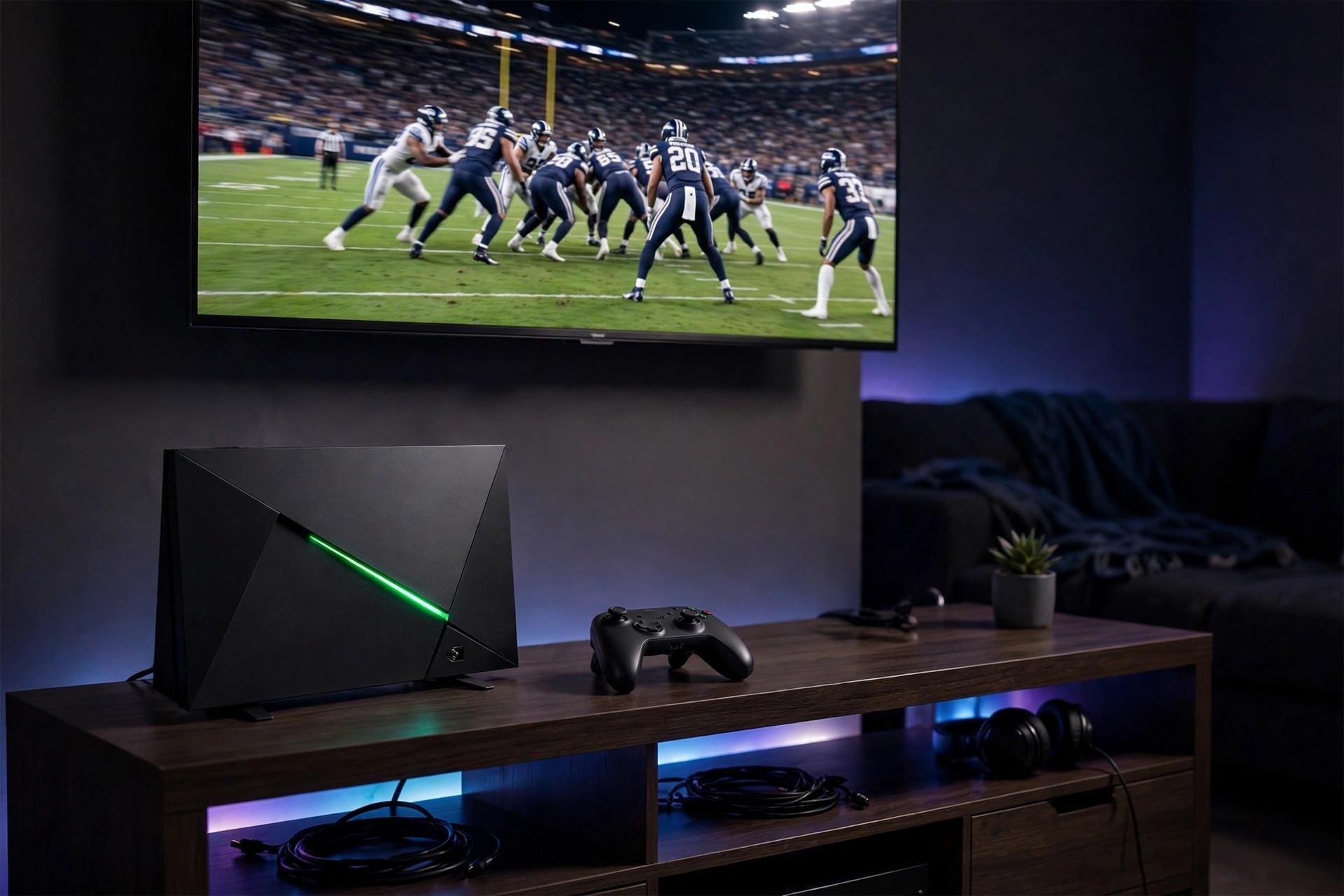
The Nvidia Shield TV Pro is the strongest streaming box you can buy for IPTV, and the gap to a Firestick is real. The Tegra X1+ chip, 3 GB of RAM, 16 GB of storage and a gigabit Ethernet port keep TiviMate fluid on a 57,000-channel playlist, where a cheaper stick pauses briefly when the EPG database loads. The Shield also has two USB 3.0 ports, which matter for recording: plug a drive into the back and TiviMate Premium records straight to it, no OTG cable needed. The AI upscaling is the feature that surprises people most — it sharpens HD channels on a 4K TV in real time, and the difference on a 1080p sports feed is visible from the couch.
There are two Shield models: the Shield TV tube, a small cylinder that costs about $150, and the Shield TV Pro, a flat box that costs about $200. The tube has 2 GB of RAM and 8 GB of storage, no USB ports, and it runs the same TiviMate setup — but the Pro is the one to buy for IPTV, because the extra RAM keeps the EPG fast and the USB ports enable recording. Both run Android TV, both use the same Play Store, and both play 4K HDR with Dolby Vision and Dolby Atmos. The Android TV setup guide covers the shared steps, and the Firestick setup guide is the page for the cheaper Amazon alternative.
Install TiviMate on Nvidia Shield
Open the Google Play Store on the Shield, search for TiviMate IPTV Player, and install the app with the purple icon. Open TiviMate and choose Add Playlist, then Xtream Codes login. Type the server URL, username and password from the WhatsApp message — the Shield remote is slow for typing, so the Android TV app on your phone is the fastest way, because it offers a full keyboard and paste. Press Next and let the playlist sync; the first sync takes one to three minutes on the Pro and a little longer on the tube, and the app shows a progress bar while the channels, VOD and EPG arrive. The Shield remote has a dedicated Netflix button and a voice button, and the voice button searches TiviMate once the app is installed.
If the Play Store search finds no TiviMate, the Shield may be signed into a Google account with a region that hides the app — sign into a US Google account and search again, or install IPTV Smarters Pro instead, which is listed almost everywhere. Once TiviMate is installed, long-press the app icon on the home screen and choose Add to favorites so it sits on the top row. The Shield also lets you reorder the home screen under Settings, then Device Preferences, then Home Screen, so the Apps row is easy to reach. The Smarters Pro setup guide walks through the same login in the other big player app.
Nvidia Shield IPTV setup with IPTV Smarters Pro
IPTV Smarters Pro installs from the Play Store the same way and suits viewers who want movies, series and live TV on one home screen with big posters. Open the app, choose Login with Xtream Codes API, type a playlist name and the three login values, and tap Add User. Smarters Pro downloads the catalogues in the background and shows the home screen within seconds, with Live TV, Movies, Series and TV Guide as separate tiles. The app supports multiple profiles, so each family member can keep separate favorites, and the parental PIN under Settings, then Parental Control, locks the adult group. On the Shield the app pairs well with the remote, and the voice search button can find a channel by name without typing.
- Open the Google Play Store on the Shield and install TiviMate or IPTV Smarters Pro.
- Choose Add Playlist, then Xtream Codes login, in the player you picked.
- Type the server URL, username and password from WhatsApp exactly as shown.
- Wait one to three minutes for the first sync of channels, VOD and EPG.
- Add the player to the home screen favorites so it is one click away.
- Plug the Shield into Ethernet for the most stable 4K connection.
- Turn on AI upscaling under Settings for sharper HD channels.
Smarters Pro also has a multi-screen mode that plays two to four channels at once, which suits the Shield on NFL Sundays — pick the layout from the player menu and assign a channel to each window. Two HD streams need about 20 Mbps and four need 50 Mbps or more, so this is a wired-Ethernet feature, and the Shield Pro has the gigabit port for it. Recording works from the player screen and saves to a USB drive plugged into the Pro, though the tube has no USB port and cannot record at all. If recording matters, the Pro is the only Shield to buy, and the recording setup guide compares the storage sizes and the steps.
EPG, favorites and AI upscaling on the Shield
The EPG on the Shield is the same guide as on any other device, and it reads the Shield clock — so the first fix for a guide that shows the wrong times is Settings, then Device Preferences, then Date and Time, then Automatic date and time, with the correct US time zone. In TiviMate, open Settings, then EPG, and set the update to run on app start every 12 hours; in Smarters Pro the same setting sits under Settings, then EPG Settings. The guide fills in progressively, so a few blank rows during the first minute are normal. Catch-up channels show a clock icon in the guide, and scrolling back on those channels plays programmes that already aired, usually for 24 to 48 hours.
AI upscaling is the Shield feature that changes how HD channels look. Open Settings, then Device Preferences, then AI Upscaling, and set it to Enhanced — the chip sharpens edges and restores detail on 1080p and 720p feeds in real time, and the demo mode splits the screen so you can see the before and after. Set it to AI-Enhanced for sport, where the extra sharpness helps, and to Basic for films, where too much sharpening looks artificial. Favorites in TiviMate work from any channel list: highlight a channel, hold OK and choose Add to Favorites, and Premium adds custom groups for NFL, NBA and news. The EPG setup guide covers guide sources and catch-up windows in more detail.
Shield 4K, HDR and audio settings for IPTV
Picture settings on the Shield live under Settings, then Device Preferences, then Display and Sound, then Resolution, where you pick 4K 59.940 Hz as the base — the Shield negotiates the best mode with the TV automatically, and the Advanced Display Settings menu lets you force HDR10 or Dolby Vision if the auto-detect picks wrong. Turn on Match Content Color Space under the same menu so SDR channels play in SDR and HDR streams switch the TV into HDR mode only when they carry it. The TV picture mode matters too: set the TV to Movie or Cinema and turn off motion smoothing, because the Shield upscaling plus the TV smoothing together over-process the picture.
| Setting | Where to find it | Recommended value |
|---|---|---|
| Resolution | Settings, Display and Sound | 4K 59.940 Hz |
| Match color space | Settings, Display and Sound | On |
| AI upscaling | Settings, AI Upscaling | Enhanced |
| Audio | Settings, Display and Sound, Audio | Auto, Dolby Atmos on |
| Network | Settings, Network and Internet | Ethernet, gigabit |
Audio on the Shield Pro supports Dolby Atmos and DTS-X passthrough over HDMI to a soundbar or receiver, and the setting sits under Settings, then Device Preferences, then Display and Sound, then Advanced Sound Settings — leave the audio format on Auto so the Shield passes the original track untouched. If lips and sound drift apart, the AV Sync setting in the same menu fixes it in milliseconds. The gigabit Ethernet port is the best connection for IPTV: a wired Shield holds 4K through the evening peak, while a Wi-Fi connection in a crowded apartment can dip below the 25 Mbps that 4K needs. The tube model has no Ethernet port, so it lives on Wi-Fi — another reason the Pro is the better buy.
Shield IPTV not working: the fixes that work
A playlist that loads channels but shows a black screen on every channel usually means the app needs a restart, not a new login. Close the app from the recent-apps button, or force-stop it under Settings, then Apps, then See All Apps, then the player name, then Force Stop, and reopen it. If only one channel is black, that feed is down — change channel and come back in a few minutes. Buffering every evening points at the network: run a speed test from the Play Store and compare with the 25 Mbps that 4K needs. A Shield on 2.4 GHz in a crowded apartment is the usual cause, and the fix is the 5 GHz band or the Ethernet cable on the Pro.
Login errors on the Shield are almost always typed passwords, because the remote keyboard is slow and the Shield remote makes it easy to hit the wrong letter. Use the Android TV phone app keyboard and paste the password from WhatsApp. If the app crashes on launch, clear its cache under Settings, then Apps, then See All Apps, then the player, then Clear Cache — never Clear Data first, because that wipes the login. Storage is the other silent problem on the tube model: it has only 8 GB, and a full EPG database plus two player apps can fill it. Delete unused apps under Settings, then Apps, and keep only the player you actually watch. Message support on WhatsApp with a screenshot when the error persists.
- Buy the Shield TV Pro, not the tube, for IPTV — the RAM and USB ports matter.
- Use the gigabit Ethernet port for 4K, and test speed at 8 PM.
- Set AI upscaling to Enhanced for sport and Basic for films.
- Clear the app cache before clearing data — cache never deletes the login.
- Keep only one player app on the tube model, which has just 8 GB of storage.