IPTV on Firestick setup guide: what the 4K Max gives you
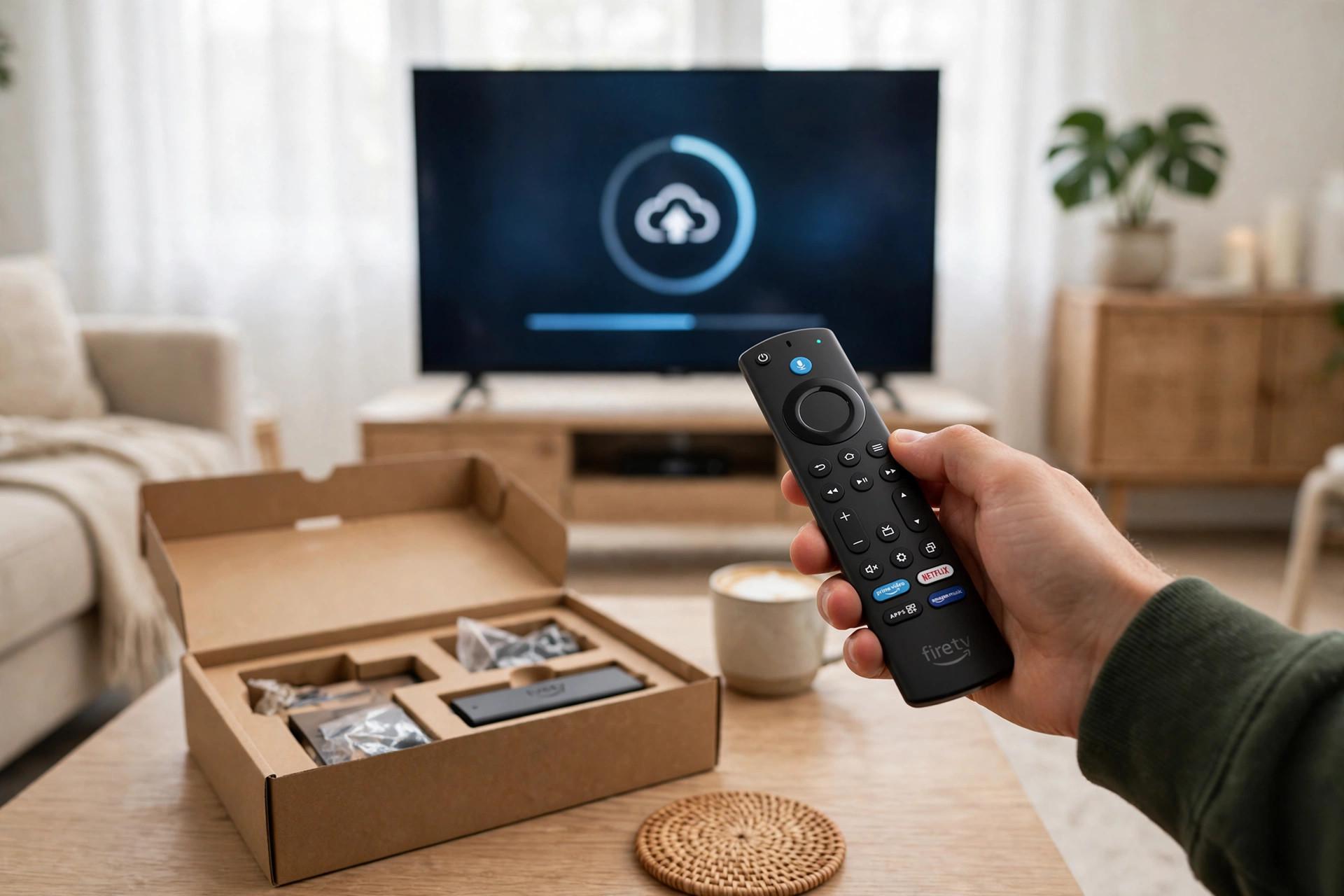
The Firestick 4K Max is the stick this guide is built around, and it earns the name. The faster processor, 16 GB of storage, Wi-Fi 6 and 4K HDR10+ support make it the smoothest Firestick for IPTV: the EPG loads without pauses on a 57,000-channel playlist, the guide scrolls without stutter, and 4K streams start in seconds. It costs about $60, against about $40 for the Stick 4K and $30 for the basic Stick, and the difference shows every evening. The box holds the stick, a voice remote with TV controls, an HDMI extender, two AAA batteries and a power adapter — use the adapter in a wall outlet, not the TV USB port, or the stick reboots when the TV sleeps.
Unbox, plug the stick into any free HDMI port — the extender cable helps when the ports are tight against the wall — and switch the TV to that input. The setup wizard asks for the Wi-Fi password and the Amazon account, and it offers to install a handful of apps; skip them all except Downloader, which you install later from the Appstore. Finish the wizard, let the stick update its software once, and restart it from Settings, then My Fire TV, then Restart. A stick that updated during setup behaves better than one that did not. The general Firestick setup article covers the same steps for every Fire TV model, and the TiviMate setup guide is the player alternative if you prefer TiviMate to IBO Pro Player.
Enable unknown sources and install Downloader
Amazon blocks sideloaded apps by default, so the first job is a one-time permission change. From the home screen, open Settings, scroll to My Fire TV, open Developer Options, and switch on Apps from Unknown Sources. On newer Fire OS builds the Developer Options row is hidden until you tap the About entry seven times — press the center button on your remote on the device name row until a countdown appears, then go back and the row shows up. Turn on ADB Debugging in the same menu: it lets Downloader hand the downloaded file to the installer cleanly. When the warning pops up, confirm it — you are allowing installs from Downloader, a well-known utility app, and nothing else changes on the stick.
- Plug the Firestick 4K Max into HDMI and finish the Amazon sign-in.
- Open Settings, then My Fire TV, then Developer Options, and turn on Apps from Unknown Sources and ADB Debugging.
- Install Downloader from the Amazon Appstore and allow it to access files.
- Enter the download address from WhatsApp into Downloader and press Go.
- Press Install on the installer screen, then Done.
- Open IBO Pro Player from the Apps library and note the MAC address and key.
- Send the MAC address and key to support on WhatsApp and wait for activation.
- Restart IBO Pro Player and let the playlist and guide load completely.
Downloader is the tool nearly every Firestick owner uses to install apps that are not in the Amazon Appstore. Search for Downloader in the Appstore, install the orange app by AFTVnews, and open it. The first launch asks for permission to access files — allow it. Type the download address you receive on WhatsApp into the URL bar and press Go. The file downloads in seconds on a decent connection, and the installer screen appears with an Install button at the bottom right. Press it, wait for the App installed confirmation, then press Done. Once IBO Pro Player is installed, delete the downloaded APK file from Downloader to free storage space — the 4K Max has 16 GB, but a full EPG database plus two players fills it faster than you expect.
Install IBO Pro Player and activate the playlist
Open IBO Pro Player from the Apps library — press and hold Home, open Apps, and find it in the list. The home screen shows two values in large text: the MAC address and a key. Write both down exactly, or take a photo with your phone — a single wrong digit means the playlist never activates. Send the MAC address and key to support on WhatsApp and wait for the activation reply, usually a few minutes during the day. The reply confirms the playlist is live against that MAC address. Restart IBO Pro Player — close it fully with the Back button until the home screen appears, then reopen it — and the channels, groups, movies and guide load in one to three minutes.
IBO Pro Player is the recommended player for Firestick because it is light, it starts fast, and its interface is built for a remote: big channel groups on the left, a channel list in the middle, and the programme guide a single press away. The app itself is free to install, and activation of the playlist is what turns it into your TV service. If the app still shows the MAC screen after a restart, the activation has not landed yet: wait five minutes and restart again. Never share the MAC address and key publicly; anyone with both can watch on the line, and a shared key is the most common reason a line gets locked. The install wording is the same everywhere on this site: via Downloader (ask on WhatsApp for the current code).
Add TiviMate as a second player on the 4K Max
Many 4K Max owners run two players: IBO Pro Player for its simplicity, and TiviMate for its guide, favorites and recording. TiviMate installs straight from the Amazon Appstore — search for TiviMate IPTV Player, install the purple app, open it, and choose Add Playlist, then Xtream Codes login. Type the server URL, username and password from the WhatsApp message, press Next, and let the playlist and EPG load. TiviMate is free for one playlist with the full guide, and Premium — about $10 a year or $30 for life inside the app — adds multiple playlists, favorites groups, recording and catch-up. The two players share the same login, so switching between them costs nothing but a button press.
Which player should be the daily one? IBO Pro Player if the household wants the simplest remote experience, TiviMate if the household wants the best guide and recording. Both play the same channels at the same quality — the difference is only the interface. Keep both installed: when one player has a bad evening, the other usually works, and that redundancy is worth the storage. Press and hold Home, open Apps, highlight each player, press Menu and choose Move to Front so both sit on the home row. The Smarters Pro setup guide covers the third big player, and the EPG setup guide explains the guide on both.
4K Max settings for the best IPTV picture
Picture settings decide whether a 4K stream actually looks like 4K. On the 4K Max, open Settings, then Display and Sounds, then Display, and set Video Resolution to Auto up to 4K Ultra HD so the stick negotiates the best mode your TV supports. Turn on Match Original Frame Rate so 24 fps movies play at 24 fps instead of being converted to 60 fps, which removes the faint judder you see on slow camera pans. Set Dynamic Range Settings to Adaptive so HDR10+ and Dolby Vision content switches the TV into HDR mode automatically, and leave Color Depth on Auto. If your TV is a 1080p set, the stick downscales 4K streams cleanly, so there is nothing to change.
| Setting | Where to find it | Recommended value |
|---|---|---|
| Video resolution | Settings, Display & Sounds, Display | Auto up to 4K Ultra HD |
| Match frame rate | Settings, Display & Sounds, Display | On |
| Dynamic range | Settings, Display & Sounds, Display | Adaptive |
| Audio | Settings, Display & Sounds, Audio | Best Available |
| Wi-Fi band | Settings, Network | 5 GHz or Ethernet adapter |
Audio matters as much as picture on movie night. Under Settings, then Display and Sounds, then Audio, choose Best Available so the stick passes Dolby Digital Plus through to a soundbar or AV receiver over HDMI ARC. The 4K Max supports Dolby Atmos on supported streams, and the setting to enable it sits in the same Audio menu. If the sound is out of sync with lips, the fix is in the same menu: Audio/Video Sync lets you nudge the delay in milliseconds, and most TVs also have an AV Sync setting of their own — set only one of them, not both, or the two corrections add up. The optional Ethernet adapter for Fire TV, about $15, removes Wi-Fi from the equation entirely and is the single best upgrade for anyone who sees buffering every evening.
Firestick 4K Max install problems and fixes
A download that refuses in Downloader is almost always a mistyped address — URLs are case-sensitive, and a single wrong letter sends you to an error page. Copy the address from the WhatsApp message character by character, or ask support to resend it. An installer screen that never appears usually means the unknown-sources permission is off: go back to Settings, then My Fire TV, then Developer Options, and confirm Apps from Unknown Sources is on. An IBO Pro Player that shows the MAC screen after activation needs a full restart of the app, not a new activation — close it with the Back button until the home screen appears, wait ten seconds, and reopen it.
Buffering on the 4K Max is a network problem far more often than an app problem. Run the built-in speed test under Settings, then Network — highlight the Wi-Fi name and press Play/Pause — and compare with the 25 Mbps that 4K needs, at 8 PM rather than in the morning. A stick on 5 GHz Wi-Fi in the same room as the router should clear 100 Mbps easily; a stick two rooms away on 2.4 GHz may not. The Ethernet adapter ends the argument. If the stick itself feels slow, check the storage under Settings, then My Fire TV, then About, then Storage: a stick with less than 1 GB free stutters on the EPG, and deleting unused apps fixes it in minutes. Message support on WhatsApp with a photo of the error when the fix is not obvious.
- Use the wall power adapter, not the TV USB port, or the stick reboots.
- Keep Apps from Unknown Sources on so player updates install cleanly.
- Delete the APK file from Downloader after every install to save storage.
- Add both IBO Pro Player and TiviMate to the home row for redundancy.
- Test the free trial at 8 PM, when the network is busiest, not in the morning.